“PupilMetrics Research” and “PupilMetrics Neuro” implements Professor Bryan K. Marcia’s clinical and historical research protocols.
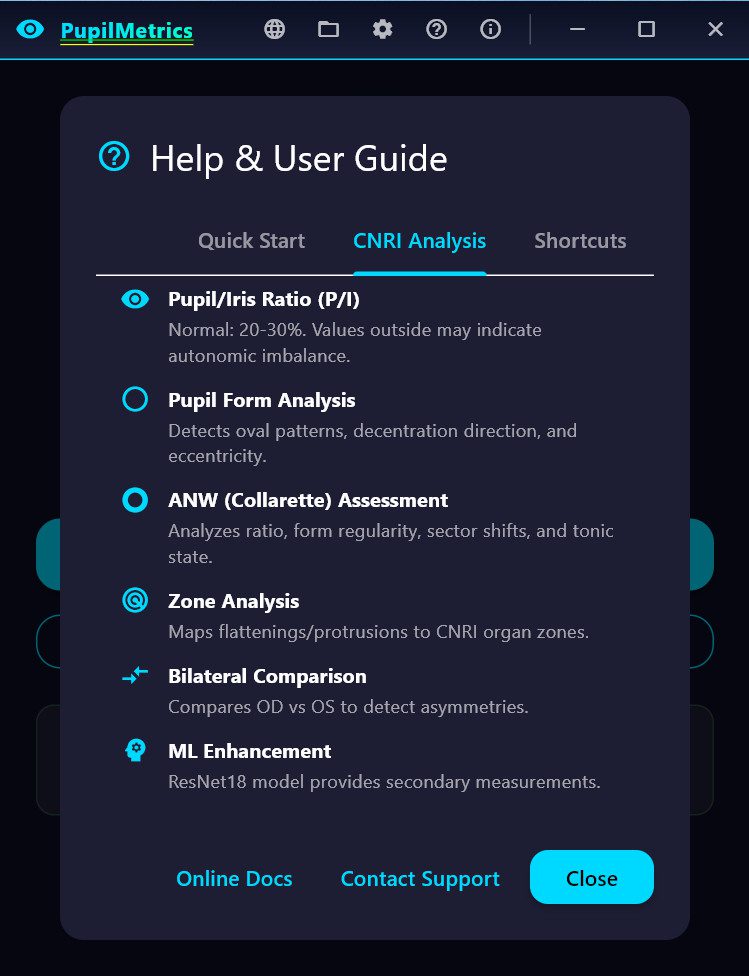
Core Algorithm Components
- Iris Detection
- Uses grayscale image processing to locate the iris boundary
- Employs a circle-scoring algorithm that searches for the strongest edge gradient
- Two-pass detection: coarse search followed by fine refinement
- Returns center coordinates, radius, and confidence score
- Pupil Detection
- Searches within the inner portion of the detected iris
- Uses adaptive thresholding based on the darkest 30% of pixels
- Fits an ellipse to the dark region using covariance matrix eigenvalue decomposition
- Extracts boundary points by ray-casting from center outward
- Returns center, major/minor axes, orientation angle, and boundary points
- Pupil Boundary Analysis
- Analyzes 72 boundary points (every 5 degrees) around the pupil edge
- Calculates deviation from the average radius at each clock position
- Groups deviations by clock hour (12 zones)
- Identifies flattenings (inward deviations) and protrusions (outward deviations)
- ANW (Autonomic Nerve Wreath) Detection (Current Phase)
- Searches for gradient changes between pupil edge and mid-iris
- Identifies the collarette boundary
- Calculates ANW ratio relative to iris diameter
- Algorithm updates include:
- SHIFTS (Drawing Out)
Which zone the collarette bulges toward
Clinical correlation based on Velhover - CONSTRICTIONS (Drawing In) Frontal zone constricted S: Middle-temporal shift. ← Drawing OUT (protrusion), S: Frontal and basal zones are constricted. ← Drawing IN (narrowing) (ML detected 78% of pathological cases!)
Basal zone constricted
Combined “Frontal and basal” pattern
Both in Same Eye
Correctly reports both when present
Matches Bexel output format exactly
What We Now Have:
ANW Ratio – Bexel-compatible calculation (25-35% normal)
ANW Form Type – Regular, Drawn In, Drawn Out
ANW Asymmetry – Per-sector variance detection
Zone Constrictions – “Frontal zone constricted” style reporting
Pattern Correlation – Compare pupil and ANW findings by sector
Key Measurements Produced
| Parameter | Description | Normal Range |
| P/I Ratio | Pupil diameter as % of iris diameter | 20-30% |
| Ellipseness | Minor/major axis ratio | >95% normal |
| Circularity | How circular the pupil boundary is | >95% normal |
| Decentralization | Pupil center offset from iris center | <5% normal |
| Deformation | Maximum boundary deviation | <5% normal |
| ANW Ratio | Autonomic nerve wreath position | 25-35% normal |
Clinical Interpretation Features
Pupil Form Types applied in Velchover system (PupilMetrics Neuro Version)
- Circle – Normal
- Oval-Vertical – Circulatory cerebral disturbances with danger of hemorrhage
- Oval-Horizontal – Depressive states, atherosclerosis, asthma predisposition
- Oval-Diagonal – Urogenital system disturbances
- Left Oblique Ellipse – Urogenital weakness, possible left side paralysis
- Unilateral Ellipse – Nervous asthma, bronchus difficulties
- Ventral Diverging Ellipse – Leg motility issues, nervous system disturbances
- Frontal Diverging Ellipse – Brain insult risk, anxiety, muscle spasms
Decentration Patterns
- Frontal – Mental/cerebral issues
- Basal – Leg motility, nervous system
- Nasal – Lung pathology (right eye) / Cardiac issues (left eye)
- Temporal – Nephritis, orchitis, salpingitis
- Middle-Nasal – Oxygen deficiency, cardiospastic risk
- Upper-Nasal – Mental disorders, spinal irritation
- And 8 more NEW machine learning directional patterns…
Zone-Specific Organ Associations
Each of the 8 pupil zones has specific organ associations for:
- Flattenings – Indicating hypofunction/weakness
- Protrusions – Indicating hyperfunction/irritation
Velhover’s Clinical Collarette Correlation Update 01.26.26
Shift Pattern
Eye
Clinical Association
Middle-temporal shift
OS (Left)
Left ventricle overload, cardiac
Lower temporal shift
Either
Vena cava inferior hemodynamics
Middle-nasal shift
Either
Vagus/stellate ganglion hypofunction
Basal shift
Either
Pelvic congestion, inflammatory diseases
Upper temporal shift
Either
Vertebro-basilar insufficiency
· Shifts (e.g., “S: Middle-temporal shift.”)
· Constrictions (e.g., “Frontal zone constricted”)
· Form Type (Regular, Drawn In, Indented, Lacerated)
· Ratio Status (Spastic/Normal/Atonic)
· Asymmetry % with Normal/Pathology label
· Findings list
Main Application Features
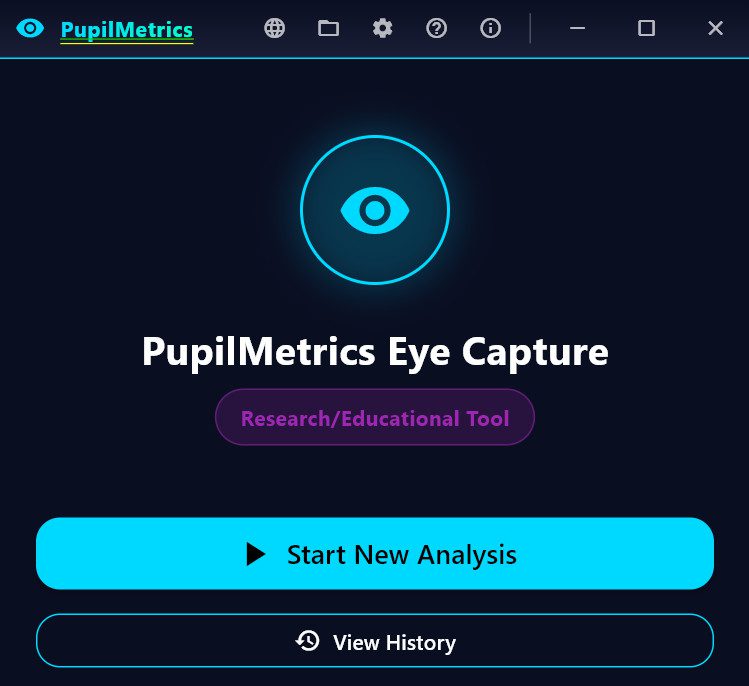
Analysis Screen
- Real-time eye validation before analysis
- Progress indicator during processing
- Displays all measurements with color-coded status
- Shows organ associations for detected anomalies
- Full descriptions for Pupil Form and Decentration Patterns
Reports Generated
- On-Screen Results – Interactive cards with expandable details
- TXT Report – Plain text with results section
- JSON Report – Structured data for integration/archival
- PDF Report – Professional formatted document with images
Additional Features
- Now available in eight languages EN,ES,PT,DE,FR,IT,KR,JP
- Age-based pupil size assessment
- Bilateral comparison between eyes
- Scan history with database storage
- PLR (Pupillary Light Reflex) video analysis
- Anisocoria detection with TBI (Traumatic Brain Injury) indicator (Neuro-Version only)
Download and Install PupilMetrics Windows 64Bit Version

Why the “security warning” for download version of the PupilMetrics app
This is a common and normal security warning from Windows (specifically Microsoft Defender SmartScreen) when installing or running new or less-common software, like many academic, research, or independent tools such as PupilMetrics Research Tool.
Why You See This Warning
Windows automatically checks downloaded files and apps against Microsoft’s cloud reputation database to help protect your PC from potentially harmful software. For new, niche, or freshly developed applications (especially those without a paid digital signature from a trusted certificate authority), the app has no established reputation yet, not enough people have safely downloaded and used it for Windows to recognize it as “known good.”
This is very typical for academic/research software, open-source projects, self-published tools, or anything from smaller developers. It’s not a sign that PupilMetrics is dangerous or malicious, it’s just Windows being extra cautious with anything unfamiliar.
The exact message you might see is something like:
- “Windows protected your PC”
- “Microsoft Defender SmartScreen prevented an unrecognized app from starting. Running this app might put your PC at risk.”
- “The publisher could not be verified. Are you sure you want to run this software?”
And the file is listed as from an “Unknown Publisher.”
How to Safely Proceed (If You Trust the Source)
If you’ve received PupilMetrics directly from us (via our official website, email from a trusted contact, USB/DVD we provided, or another verified channel), and you’re confident it’s the legitimate tool for your research needs, you can safely continue:
- When the warning dialog appears, look for and click the “More info” link (it might be small or tucked away, sometimes it’s the only way to reveal extra options).
- This expands the dialog to show a “Run anyway” button (or similar phrasing like “Install anyway” for installers).
- Click “Run anyway” to proceed with the installation.
- Windows may ask for admin approval (UAC prompt) next, just confirm if you’re okay with it making changes.
- After you do this once successfully, Windows often remembers your choice for that specific file/version, so future runs (or reinstalls) may skip the warning.
Important safety notes:
- Only do this if you trust the source, we recommend downloading only from our official site or links we provide.
- For extra peace of mind, you can scan the file first with Windows Defender (right-click the file → Scan with Microsoft Defender) or upload it to VirusTotal.com to check against multiple antivirus engines.
- If you’re on a work/school-managed computer, your IT admin might have stricter policies that block it entirely (showing a different “forbidden by system policy” message)—in that case, reach out to them or try on a personal device.
| Alternative way to install without Windows warnings: If you see the “publisher could not be verified” or SmartScreen warning when downloading and running the PupilMetrics installer directly, try this easy workaround: Download the file to your computer first, then copy it to a USB flash drive (any standard USB stick works best if it’s FAT32-formatted, which most are) or burn it to a blank CD/DVD. When you run the installer from the USB or disc instead of directly from your downloads folder, Windows treats it as a local file and usually skips the security prompt entirely. This happens because the download “internet flag” gets removed during the copy or burn process, it’s a normal Windows behavior for new or academic/research apps like this one. Just plug in the USB or insert the disc, double-click the installer, and proceed as usual (you may still see a standard admin approval prompt). This method works reliably for most users and avoids the extra click on “Run anyway.” |
We’re working on ways to build better reputation over time (e.g., through more users safely running it or adding proper signing in future versions), so this warning should become less common as more researchers use PupilMetrics successfully.
If you run into any other issues during install or have questions about the tool, feel free to reply, we’re here to help! Thanks for using PupilMetrics in your work.